
Products
Solutions
Resources


The Model Context Protocol (MCP), a standard that enables AI systems to connect and interact directly with software systems, has been widely adopted across AI tooling to provide access to systems that hold critical data and workflows.
This is especially important when developing with AI coding agents, since many critical development tools live outside the IDE. For example, feature flagging, experimentation, and analytics tools like Statsig shape how code reaches production, but without MCP, AI coding agents lack visibility into that context. As a result, teams are forced to either context-switch between tools like Statsig and the IDE, or risk AI agents writing code without access to guardrails such as feature flags or measurement through experimentation when they are needed.
This guide shows how to use Statsig’s MCP server to address that challenge in practice. It walks through setup, prompt examples, and best practices for integrating feature gates, experiments, and measurement directly into AI coding workflows.
Statsig's MCP Server at a glance
The Statsig MCP server exposes Statsig’s Console and API functionality as a structured set of tools that AI clients can call directly. Feature flags, experiments, rollouts, metrics, and guardrails already sit at the center of how teams ship safely with confidence. Statsig’s MCP makes this system of record native to the AI development workflow and directly accessible to AI agents.
How it works (conceptually):
A developer uses an MCP-capable client: such as an AI coding agent like Codex or Cursor
The MCP-capable client connects to the Statsig MCP Server using OAuth: to establish a secure connection
The MCP server exposes a set of Statsig tools: such as creating a gate, creating an experiment, or fetching current configurations and results
The MCP client calls Statsig tools in response to developer commands: When a developer enters a command that involves Statsig (for example, “set up a gate”), the AI tool can:
perform actions in Statsig, such as creating or updating configuration (e.g., "Create a new gate that only shows this feature to the internal employees user segment")
retrieve information like status, results, or metrics for the developer to review (e.g., "What is the status of the last 10 experiments created")
Connecting the Statsig MCP server to AI coding agents evolves Statsig from a tool developers use after shipping into infrastructure that AI reasons with before, during, and after changes are made. The result is a development loop where AI helps teams move faster and stay in flow, without compromising control or visibility.
What does this look like in practice?
Setting up Statsig's MCP Server
Statsig’s MCP server can be used with a variety of AI coding assistants / agents, , including Cursor, ChatGPT, Codex, and more. Below is a quick walkthrough for getting set up in Cursor. To get set up with other AI clients, visit our docs.
To set up Statsig’s MCP server in Cursor:
Open Cursor settings
Navigate to Settings > Cursor Settings > Tools & Integrations
Find the MCP servers section
Add the following configuration to
~/.cursor/mcp.json:
Note that Cursor will automatically handle OAuth authentication the first time you use the Statsig MCP server. We recommend using OAuth-based authentication rather than long-lived API keys wherever possible. OAuth provides better security guarantees, supports scoped access, and makes it easier to manage permissions as more agents and workflows are introduced.
Putting prompts into action
Once Statsig’s MCP server is set up, the best way to understand what’s possible is to try it. Below are example prompts that show how to bring Statsig tooling directly into your AI development workflow. Getting started is easy - just copy and paste each prompt to start exploring the workflows step by step.
Clean up stale gates
Step 1 - Task your AI coding agent with the following prompt:
Step 2 – Stale gate identified and analyzed: once a stale gate is identified, the AI agent calls Get_Gate_Details_by_ID to retrieve gate metadata and understand how the gate is evaluated and referenced in the codebase. This includes inspecting rollout rules, exposure status, and surrounding code to determine whether the gate can be safely removed or requires a behavior-preserving refactor.
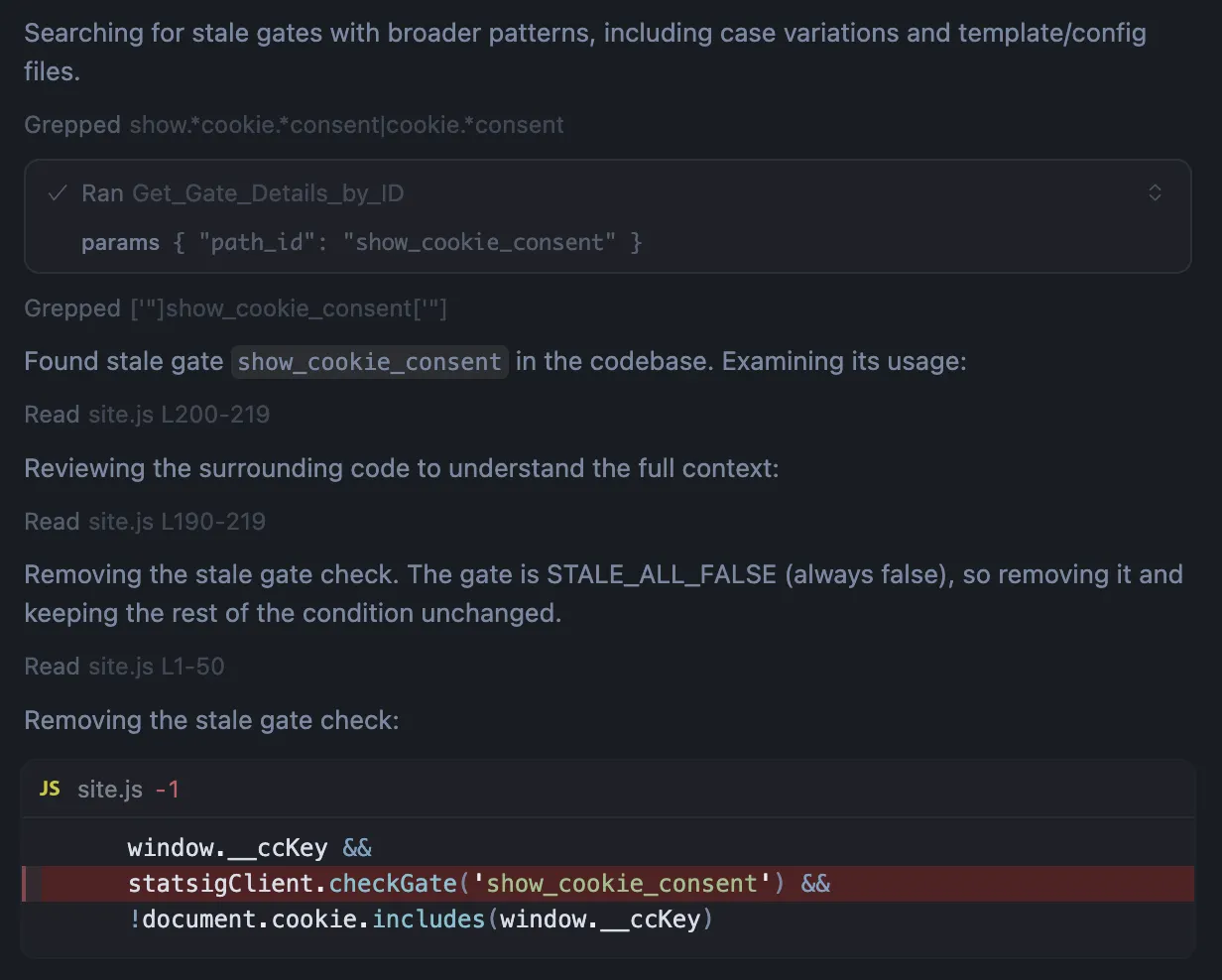
Step 3 - Stale gate removed: once the gate’s usage is understood, the AI agent removes the stale gate check from the code while preserving existing behavior. In this example, the gate was marked as STALE_ALL_FALSE, so the conditional is simplified by removing the checkGate call and keeping the remaining logic intact. The agent then validates the change and confirms the gate is no longer referenced in the codebase.
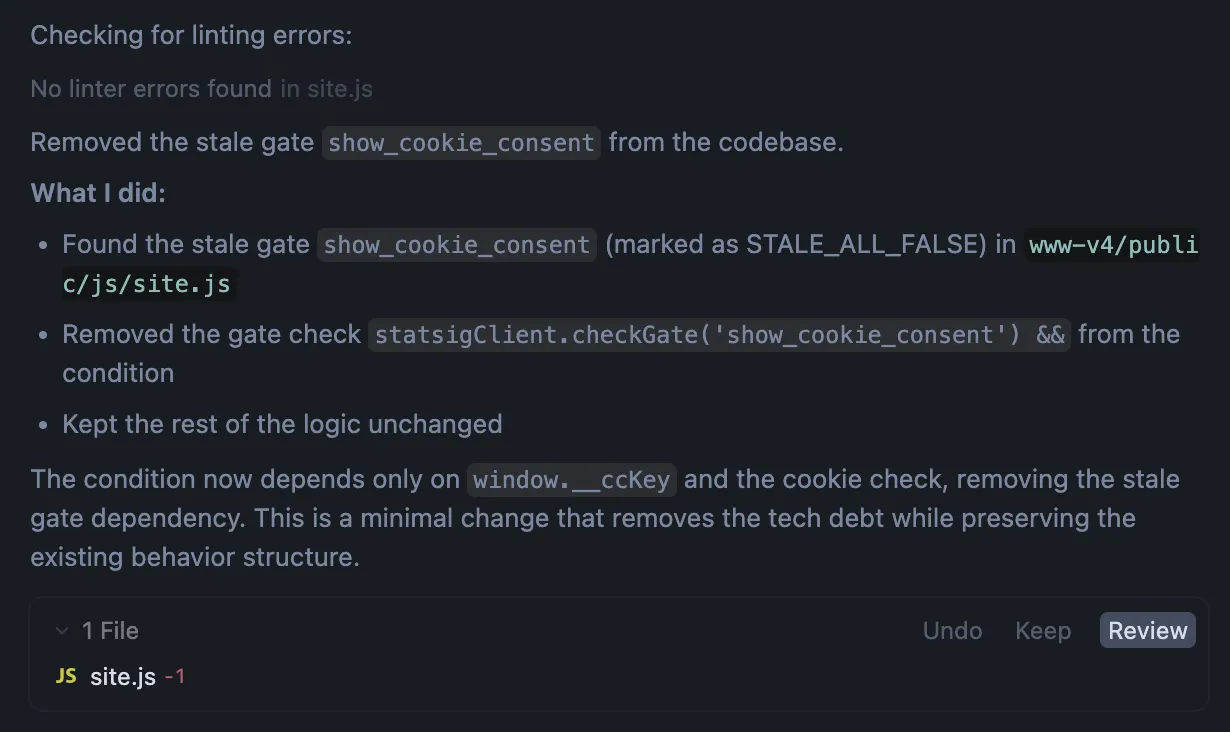
Cleaning up stale gates is typically a multi-step process: auditing configuration, tracing usage across the codebase, refactoring logic, and validating behavior. With Statsig’s MCP server, this entire workflow can be handled inside the coding environment, helping to reduce overhead as shipping velocity increases.
Summarize feature gate and experiment status
Step 1 - Task your coding agent with the following prompt:
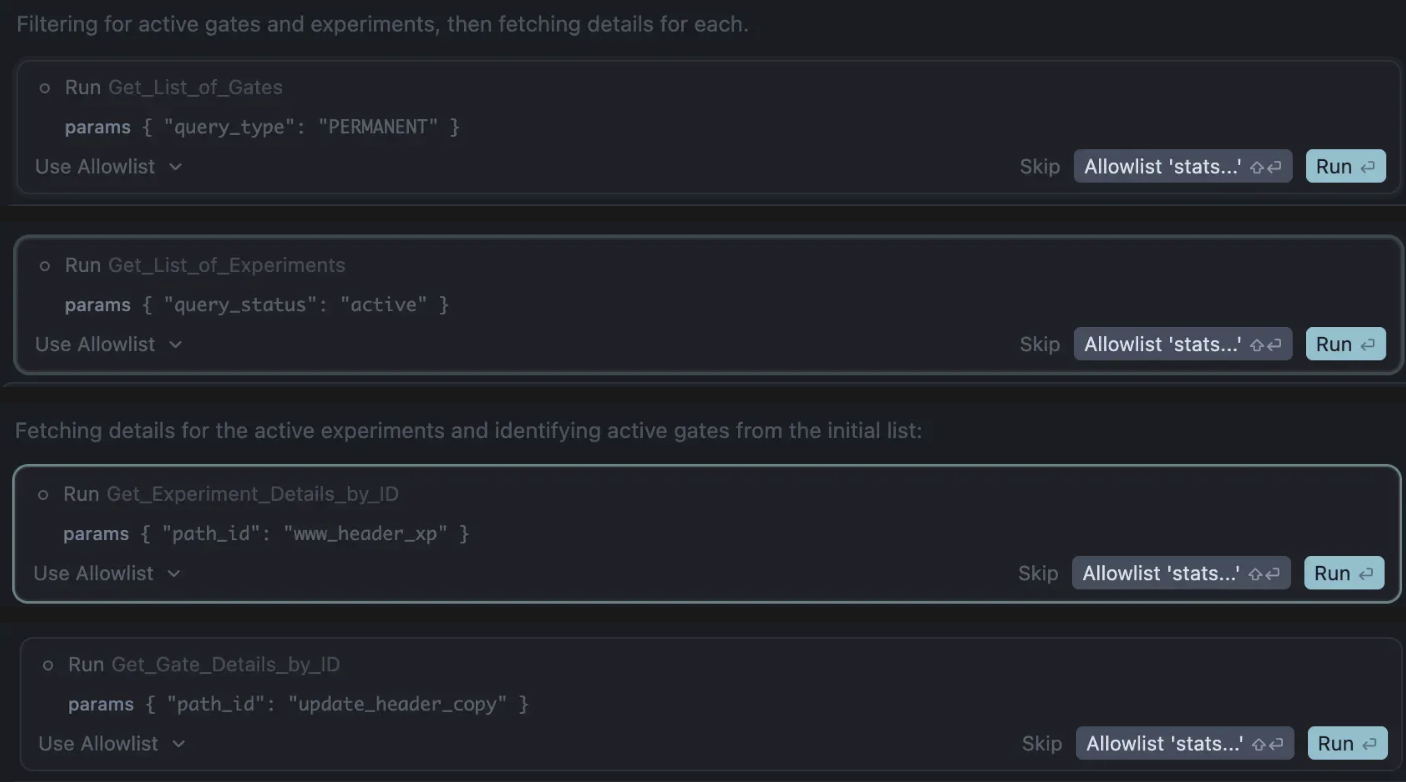
Step 2 - Active gates and experiments identified and inspected: the AI coding agents iteratively decides which Statsig MCP tools are most relevant to call (i.e., Get_List_of_Gates, Get_List_of_Experiments, Get_Gate_Details_by_ID, Get_Experiment_Details_by_ID) based on tool descriptions and prompt given. With each step, user has control and decision over running the tool call.
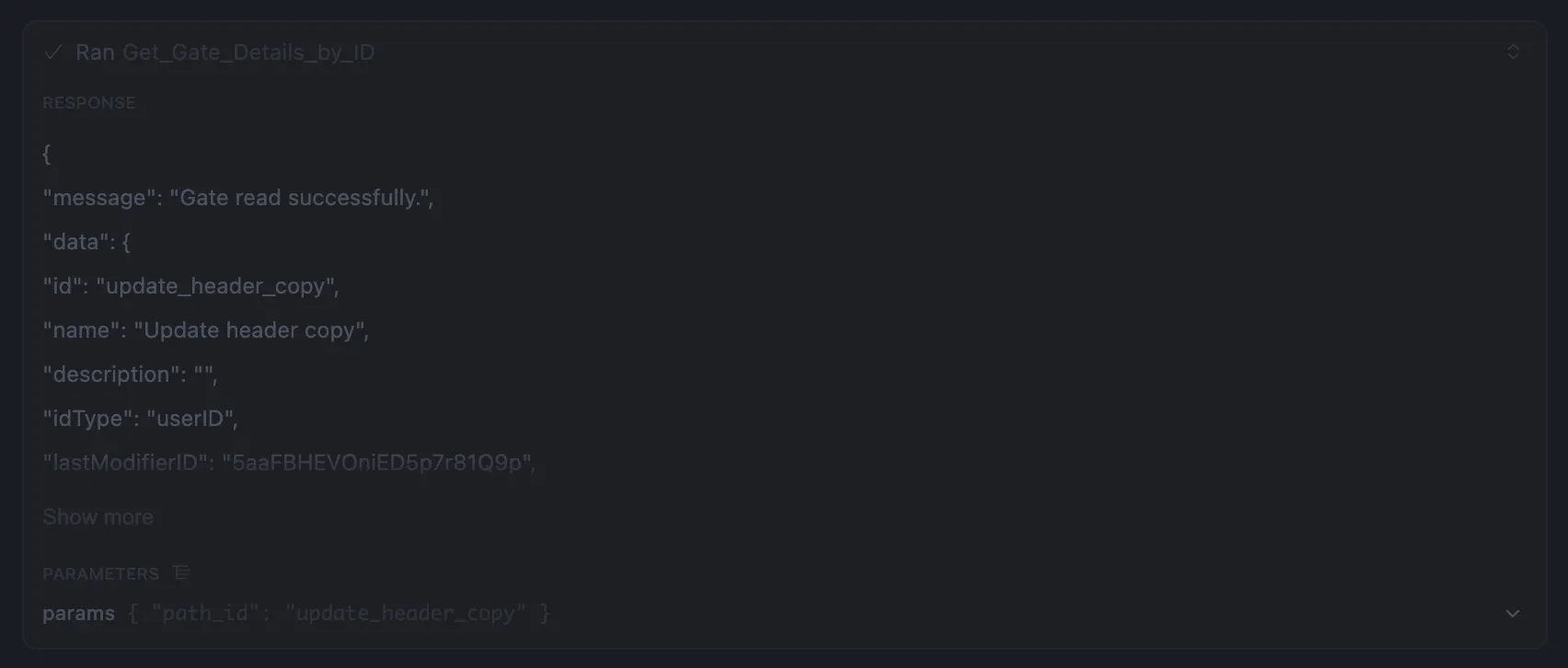
Step 3 - Status summary generated: using the retrieved configuration data, the AI agent produces a concise, structured summary of all active gates and experiments and writes it to SUMMARY.md. The summary includes:
A clearly separated section for feature gates and experiments
Only the fields explicitly requested in the prompt
Recent change information to highlight what has been modified most recently
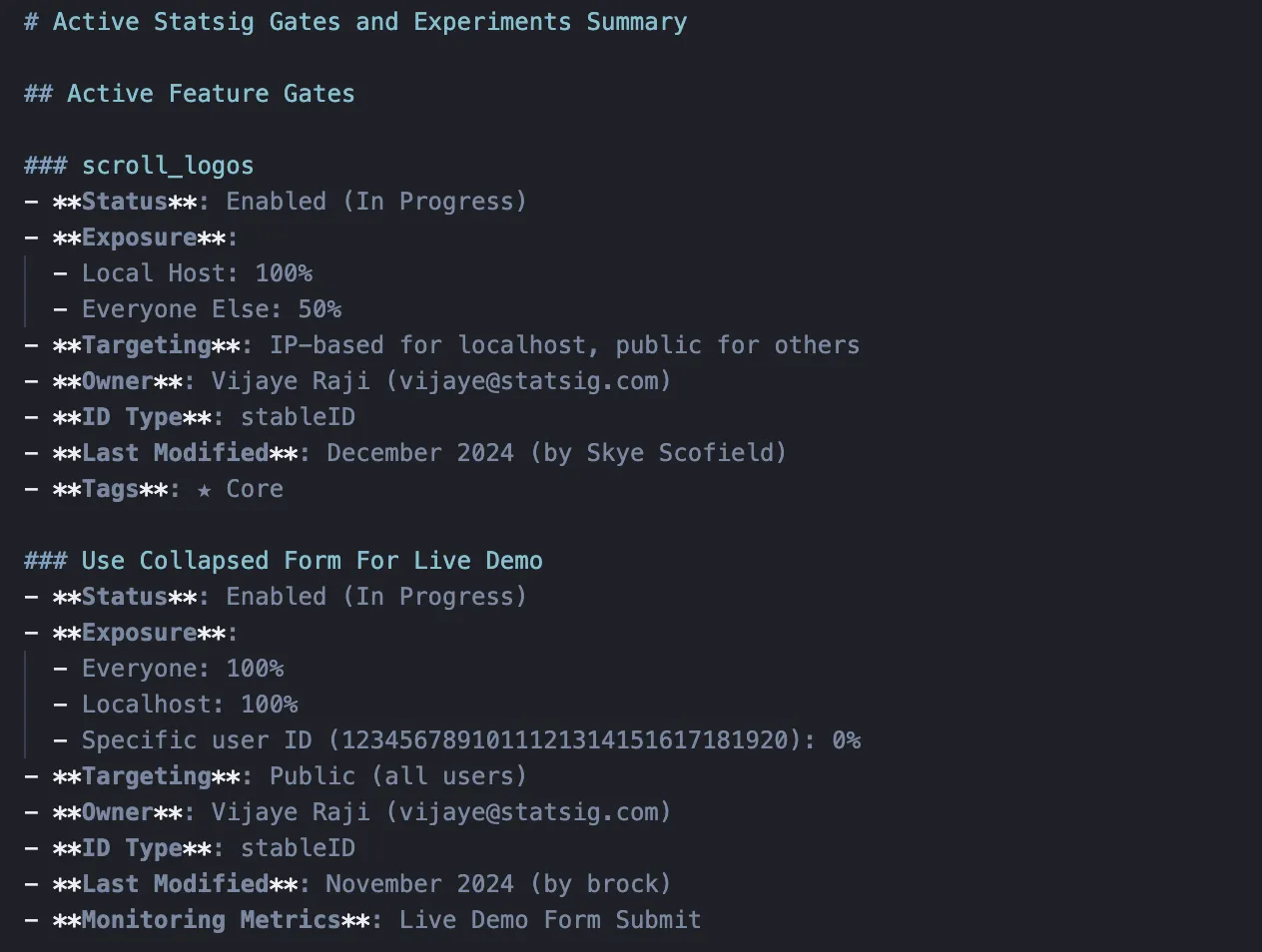
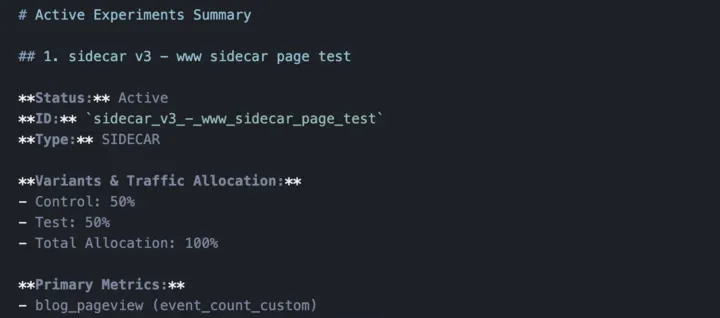
Building an accurate snapshot of active gates and experiments typically requires navigating multiple console views, filtering entities, and manually stitching together configuration details. With Statsig’s MCP server, this entire process becomes a single, guided workflow that runs directly inside the coding environment, keeping teams in flow.
Brainstorm experiment ideas using existing context
Step 1 - Task your coding agent with a prompt relevant to the context of key metric(s) you are hoping to lift through experimentation. In this example, we assume a product manager owns click-through and activation rates, has observed a decline, and wants to brainstorm experiment ideas to improve those metrics.
Step 2 - Exploring existing experiment context: using the Statsig MCP, the AI agent inspects existing and past experiments related to the landing page and activation funnel. It retrieves experiment configurations, metrics, and recent changes to understand what has already been tested, what is currently running, and where gaps or regressions may exist.

Step 3 - Personalized experiment ideas generated: based on the retrieved Statsig context, the AI agent proposes a small set of targeted experiment ideas tailored to the observed activation decline. Each idea includes a clear hypothesis, primary metrics, a concrete change to test, and a brief rationale tied to existing Statsig data.
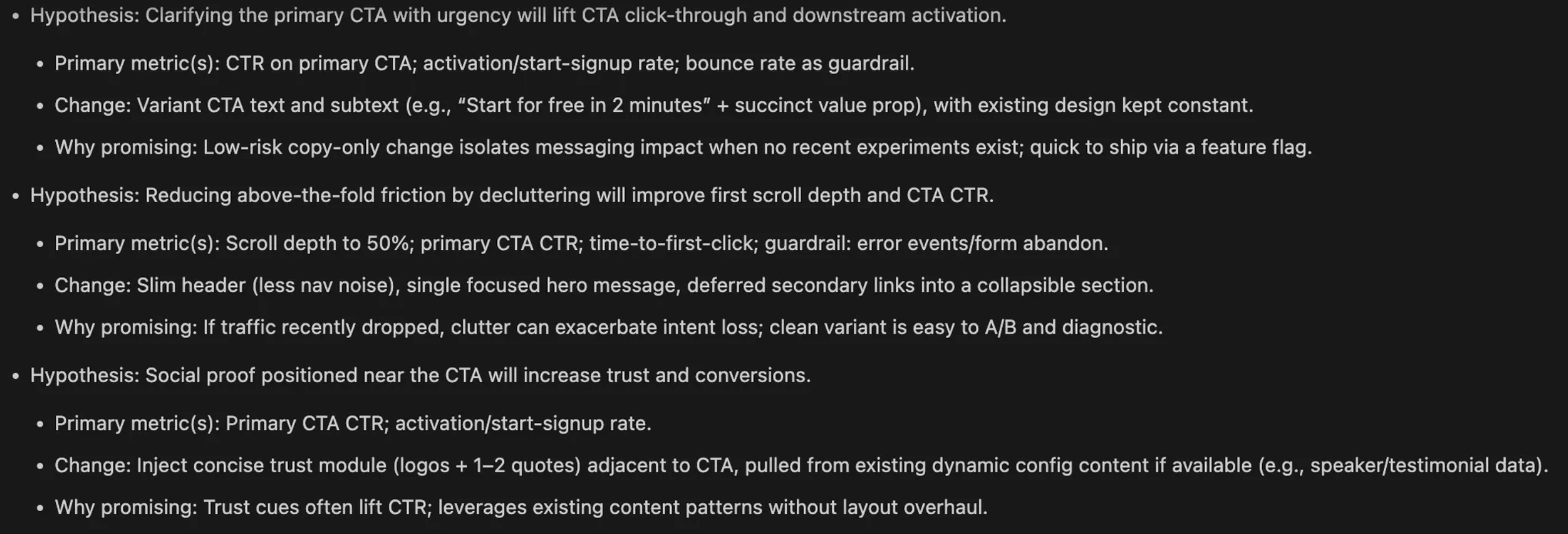
Brainstorming experiment ideas often starts from a blank slate, relying on tribal knowledge and manual review of past experiments, metrics, and dashboards. With Statsig’s MCP server, AI can ground experiment ideation in existing Statsig context, generating data-informed hypotheses directly inside the coding workflow and reducing the time it takes to design and launch experiments.
Your turn: try writing your own prompts
The examples above illustrate a few common workflows enabled by Statsig’s MCP server, but they’re far from exhaustive. To explore further, try writing your own prompts based on the following ideas, and refer to the Best Practices section below for guidance on prompt structure.
Analyze experiment results and decide next steps:pull experiment results and generate a clear rollout recommendation based on your Statsig data
Create experiments the right way: spin up experiments with consistent structure, including variants, metrics, and exposure logging, so experimentation is set up correctly from the start
Auto-add gates during code generation: as new code is written, automatically add feature gates to ensure rollouts are safe and measured
Best practices
While this guide provides concrete starting points for using Statsig’s MCP server, effective use in production requires a few consistent patterns. This section outlines best practices for writing good prompts and keeping humans in the loop. Following these guidelines helps ensure workflows using Statsig’s MCP Server remain safe, reliable, and scalable in real development environments.
Prompts
The prompts in this guide follow a consistent structure. The following patterns are intentional and recommended when working with Statsig’s MCP server:
Constrain scope explicitly
Be clear about what the agent should and should not touch. Narrow scopes reduce risk and improve determinism.
Examples: “active gates only,” “select a single gate,” or “stop after completing one change”.
Enforce source-of-truth usage
Always instruct the agent to use Statsig MCP tools rather than assumptions or static knowledge.
Example: “Use the Statsig MCP to inspect configuration; do not infer state.”
Define success criteria clearly
Tell the agent exactly when it is done and what output is expected.
Examples: “Write the result to
SUMMARY.mdand stop.” “Return after removing one stale gate.”
Bias toward minimal, behavior-preserving changes
When modifying code, prompts should emphasize refactors that preserve existing behavior rather than broad rewrites. This is especially important when removing feature gates or adjusting rollout logic.
For example, you might prompt your AI coding agent to make minimal changes, avoid comments, and follow the conventions and style of the surrounding code. These constraints help ensure refactors are safe, consistent, and easy to review, and are often best encoded in an agents.md file or Cursor rules for more systematic workflows.
When to let agents vs. humans decide
Not every action should be fully automated. Statsig’s MCP server is designed to support human-in-the-loop workflows by default. Agents can gather context, propose actions, and prepare changes, while humans retain final control over execution.
Good candidates for agent-led execution
Summarizing state of feature gates or experiments
Proposing refactors or rollout changes
Brainstorming experiment ideas
Actions that should usually require human review
Creating new gates or experiments that affect production traffic
Stale gate cleanup
Making changes with unclear blast radius
Bonus: embedding MCP into more systematic workflows
The examples in this guide focus on inline prompts, which work well for one-off or exploratory tasks. As teams adopt MCP more deeply, some workflows benefit from being encoded once and reused consistently.
For repetitive or systematic workflows, such as gating every new feature before launch, consider defining agent behavior using an agents.md file or Cursor rules. These mechanisms allow you to capture long-lived instructions, safety constraints, and organizational conventions without repeating complex prompts each time.
Embedding guidance this way helps ensure consistent behavior across runs and makes higher-impact workflows easier to review and reason about. This approach is optional and best suited for teams that have already identified stable, recurring MCP workflows. For more details on configuring agents.md and Cursor rules, visit the Statsig MCP Server docs.
Conclusion
As AI agents become central to development, the limiting factor becomes coordination, not code generation. Product builders must ensure that guardrails and measurement keep pace with the shipping velocity that AI accelerates. Statsig’s MCP server addresses this by making Statsig tooling a first-class primitive in AI-driven workflows.
For teams that already rely on Statsig and are adopting AI coding assistants, Statsig’s MCP Server is the fastest way to eliminate context switching, preserve guardrails, and keep decision-making aligned and data-driven as velocity increases. The sooner this integration is in place, the more control, visibility, and coordination teams gain as AI becomes a core contributor to production code. To get started, visit the Statsig MCP Server docs or learn more at Statsig.com/mcp.