Products
Solutions
Resources


Product Updates
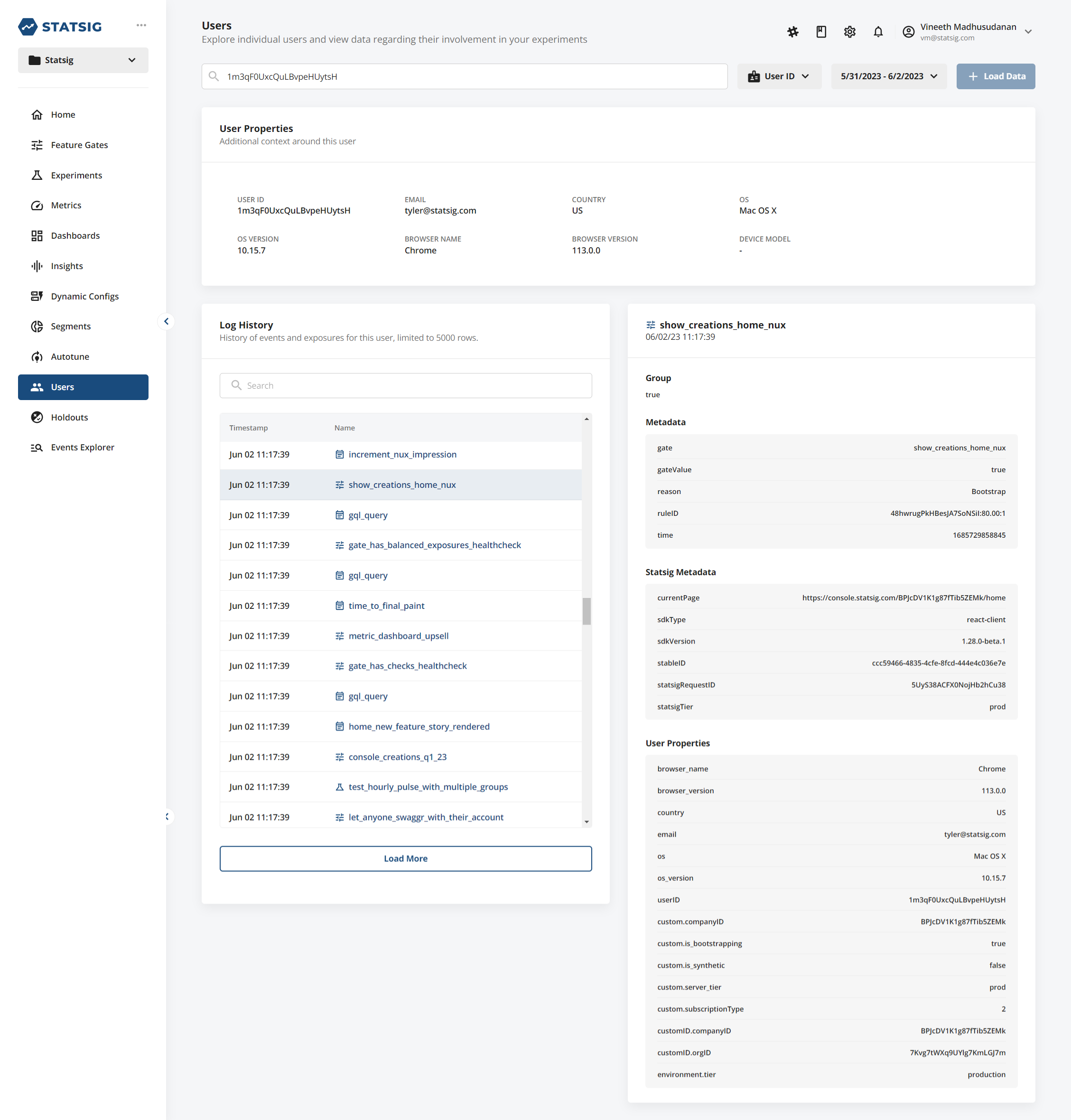
⚡️Faster Users Tab for troubleshooting
The Users tab enables you to diagnose issues for specific users, by helping answer questions like "which experiment group was this user in?" Or "when did the user first see this feature?" We've just upgraded the backend for this - lookups now take ~5 seconds, instead of ~10 minutes.
🎯 Targeting on Holdouts
We've just started rolling out the ability to apply targeting on Holdouts. Holdouts work by "holding-back" one set of users from testing and comparing their metrics with normal users. Statsig now lets you apply a Feature Gate to your Holdout. e.g. if you wanted an iOS User Holdout, you could apply a Feature Gate that passes only iOS users.
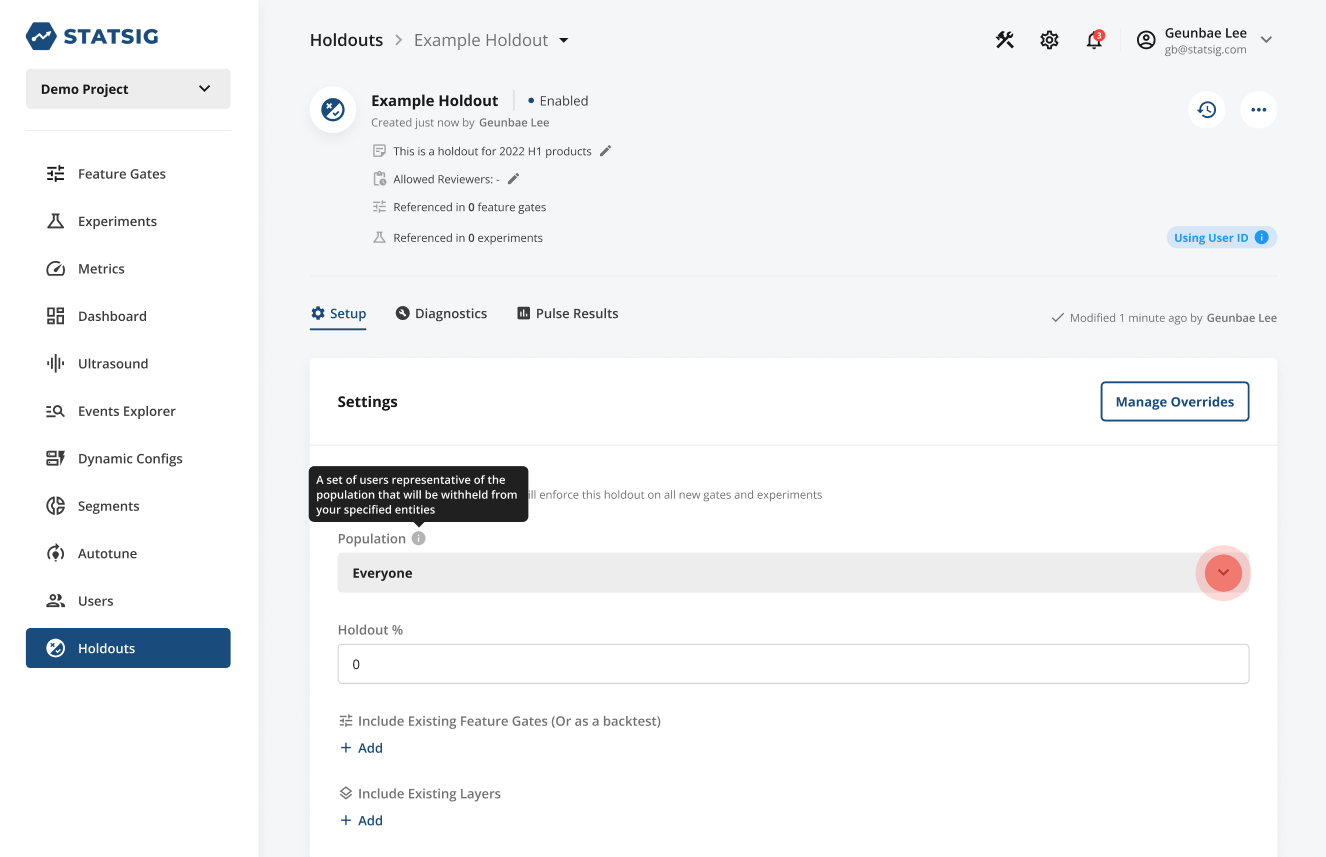
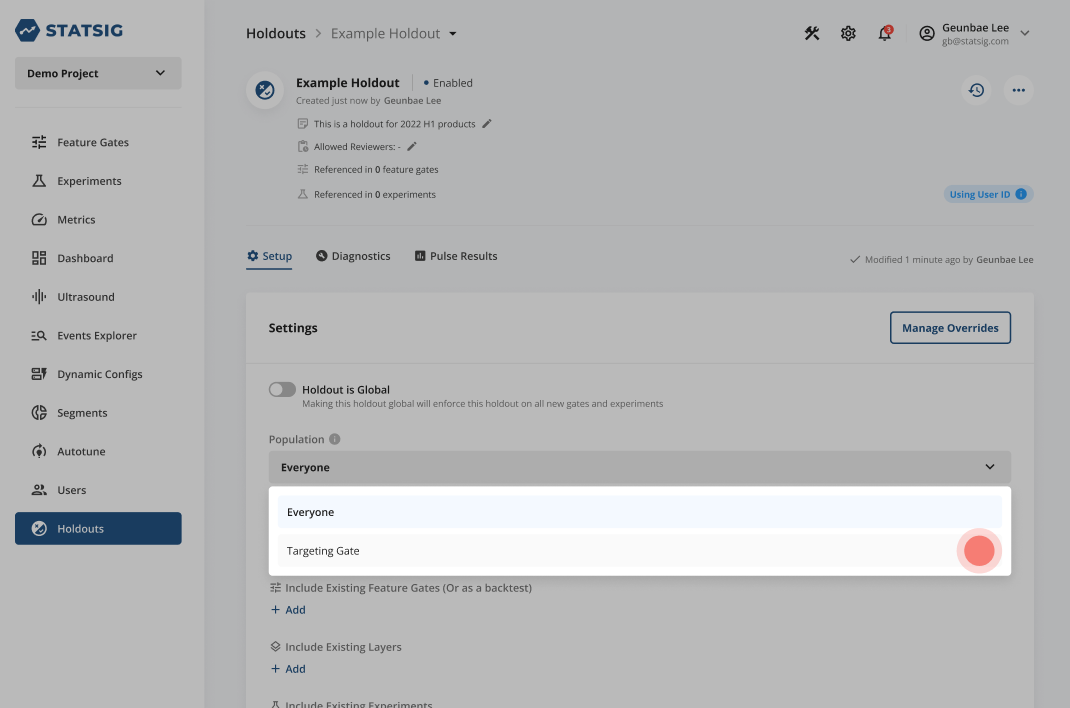
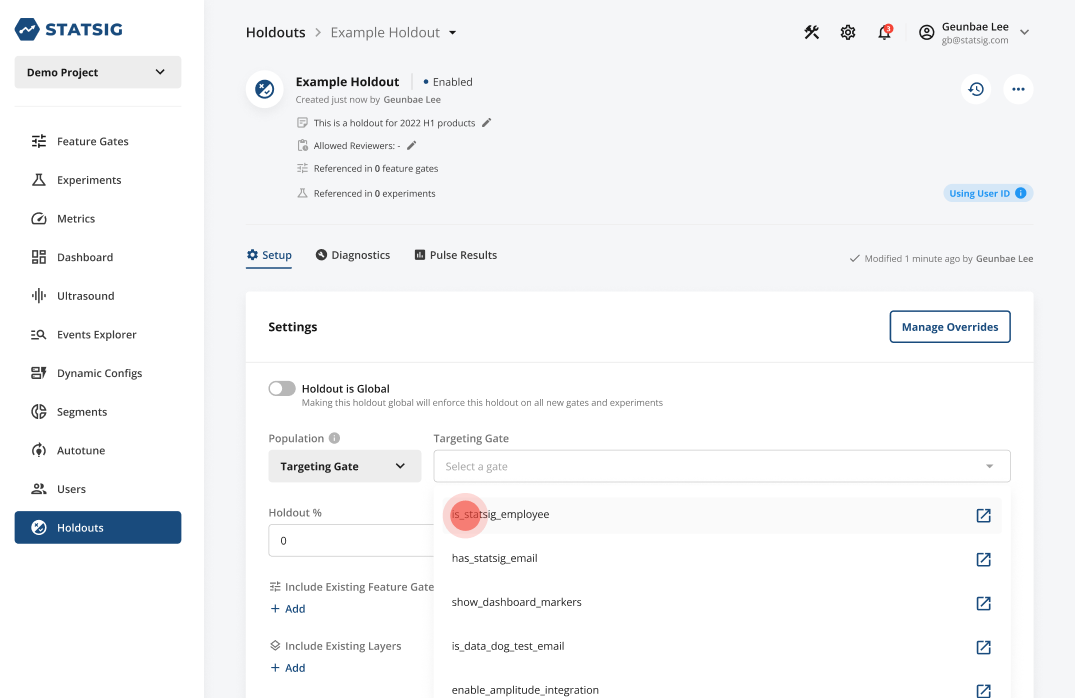
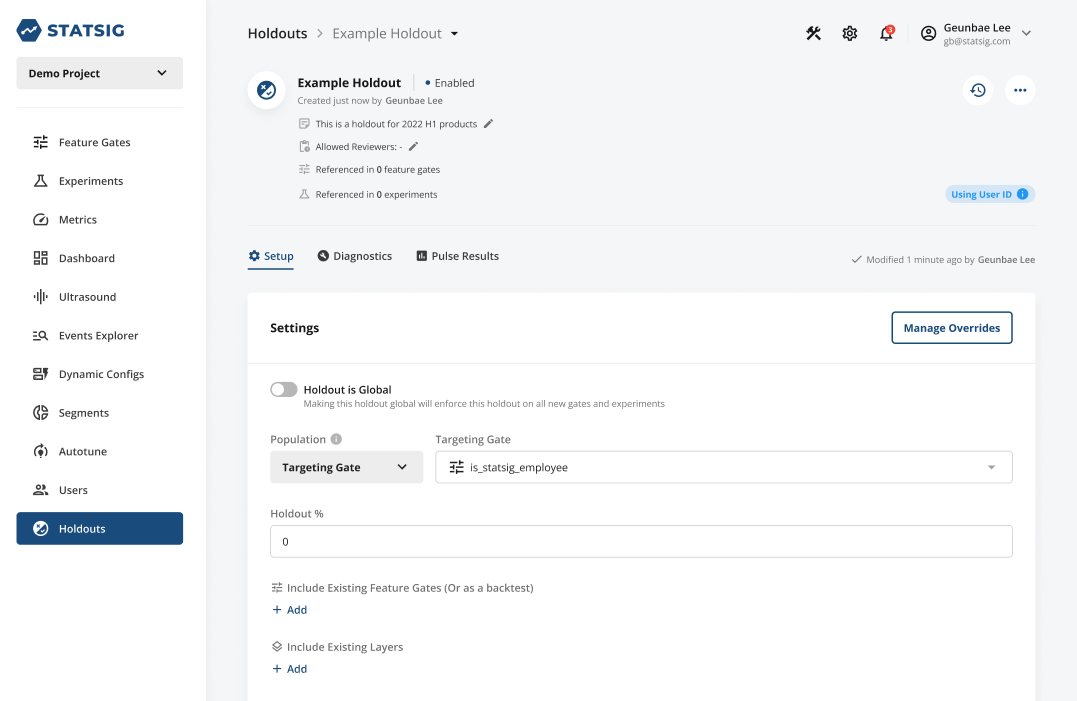
Holdouts are the gold standard for measuring the cumulative impact of experiments you ship. (Learn more)
⌛ 90-day Pulse expiration
As teams have grown their Statsig usage, so has old experiment clutter. A few months back we launched a suite of tooling to manage the lifecycle of your feature flags, and today we’re rolling out automated clean-up logic for old experiments as well.
Starting this week, Statsig will be setting a default Pulse Results compute window of 90 days for all new experiments going forward, after which your Pulse Results will stop being computed. Please note this only applies to experiments, not feature gates, holdouts, or any other config types.
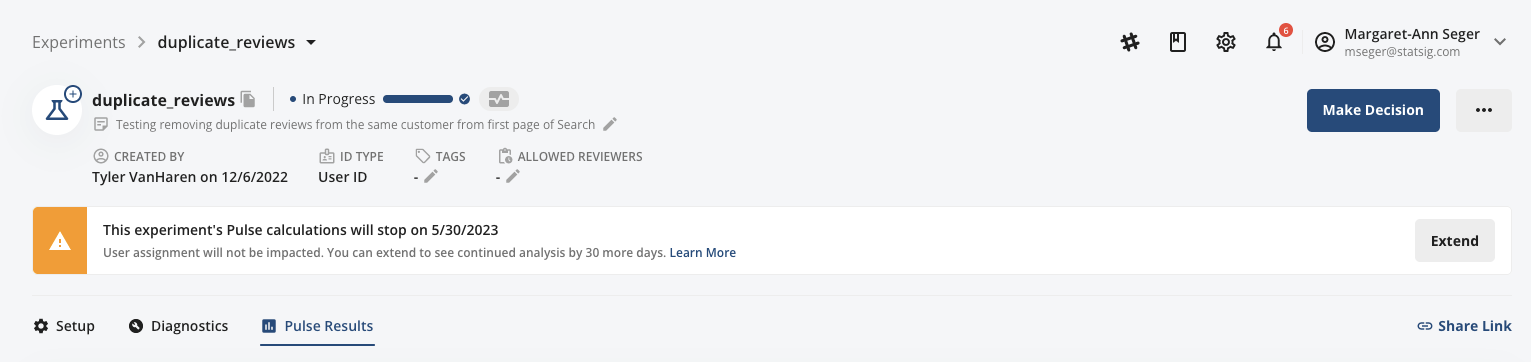
You will be able to extend this window at the individual experiment level as you approach the 90-day cap, and your user assignment will not be impacted even if results stop being computed. Read more in our docs.
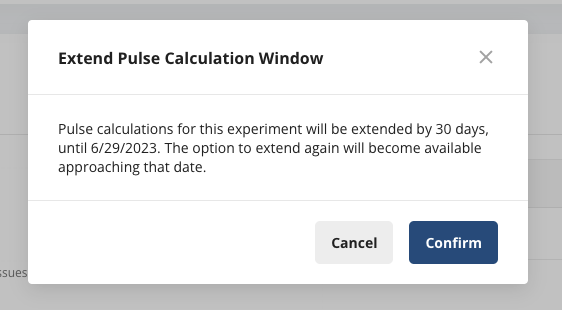
In the coming days, experiment owners of impacted experiments will receive an email notification and 14 days to extend the Results compute window, if you wish to. As always, don’t hesitate to reach out if you have any questions- our hope is that this both cleans up your Console and saves teams money long-term!
🧑🤝🧑Cloning Metrics
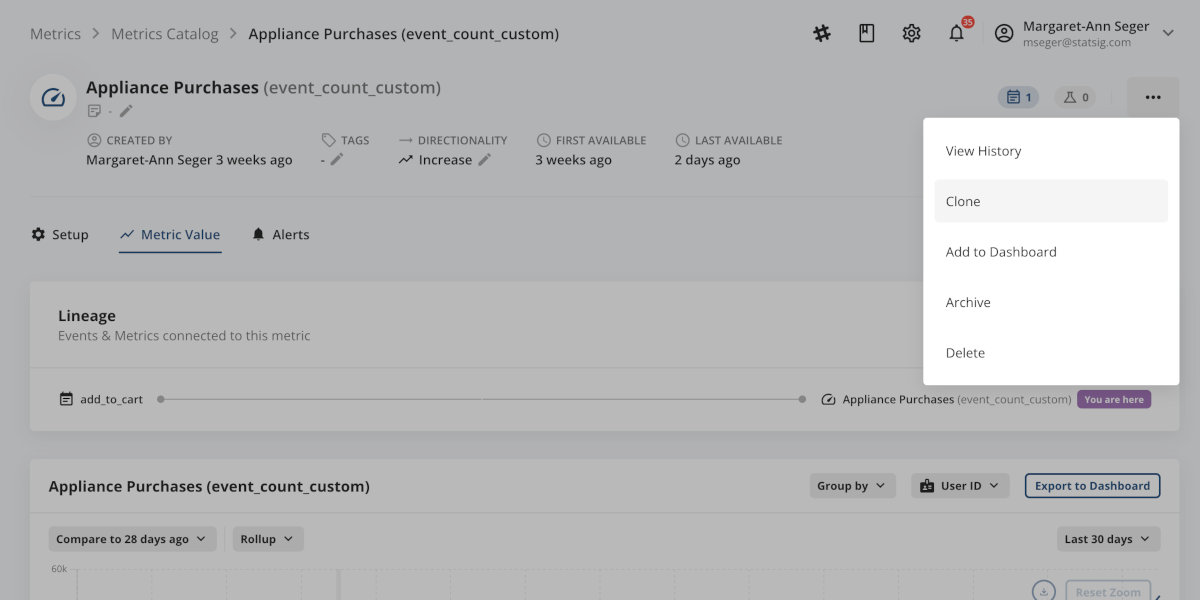
Have you ever set up a relatively complex Custom Metric and then realized you want another similar metric but with a slight tweak? Yep, we have too! To make that process easy, today we’re introducing the ability to clone Custom Metrics.
To clone a Custom Metric, go to the "…" menu in a metric page, then select “Clone.” You will have the opportunity to name your new metric, add a description and tags, and then we will auto-fill all the inputs of the metric definition from the source metric. Customize to your liking and you're good to go!
Happy Friday, Statsig Community! To cap off a beautiful week here in Seattle ☀️, we have a number of exciting launch updates to share:
🕒 Fast(er) Pulse
Todate, when you launch a new feature roll-out or experiment, you have to wait 24 hours to start seeing your Pulse results. Today, we’re very excited to shorten that time significantly with the launch of more real-time Pulse. Now, you will see Pulse results start to flow through within 10-15 minutes of starting your roll-out or experiment.
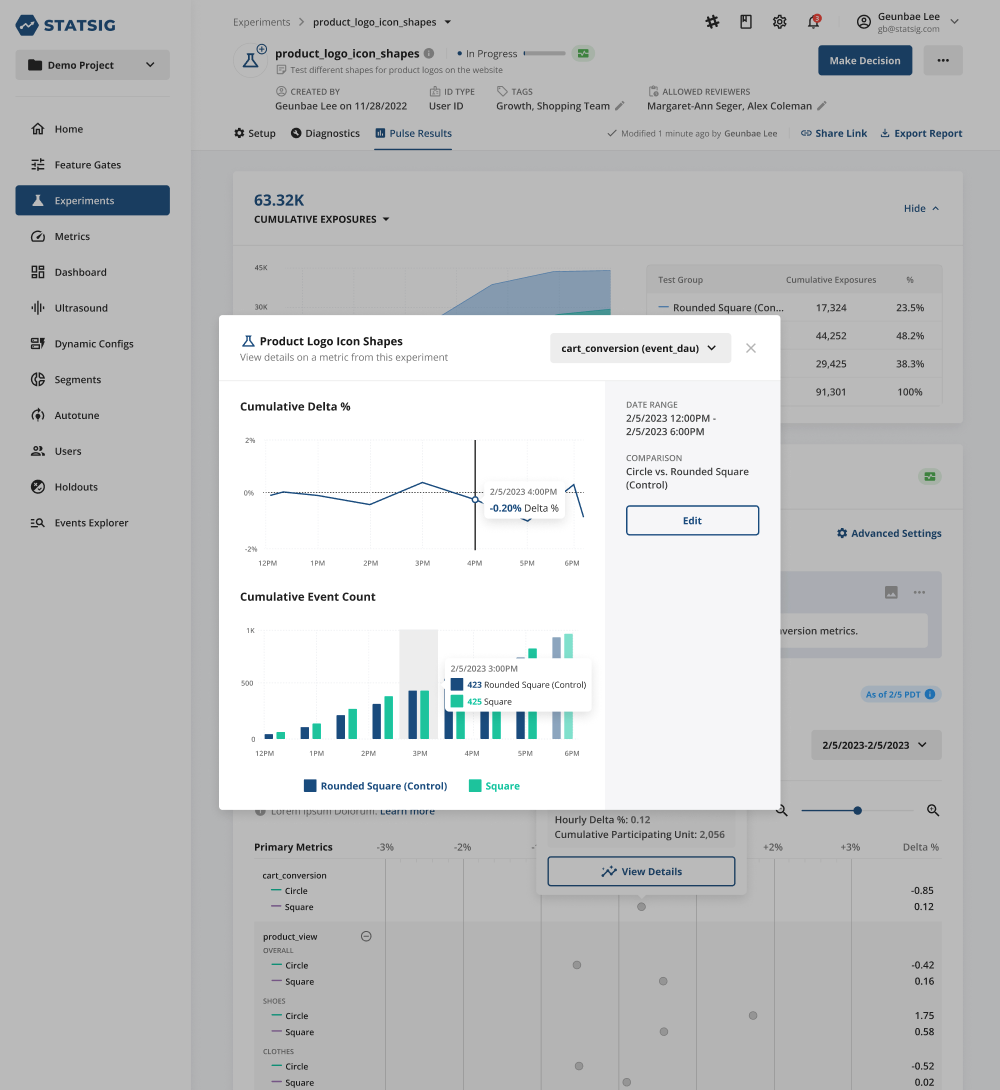
A few things to consider-
For the first 24 hours, results do not include confidence intervals; early metric lifts are meant to help you ensure that things are looking roughly as expected and verify the configuration of your gate/ experiment, NOT make any launch decisions
The Pulse hovercard view will look a bit different; time-series and top-line impact estimates will not be available until the first 24-hour daily lift calculation
☁️ Environments in Overrides
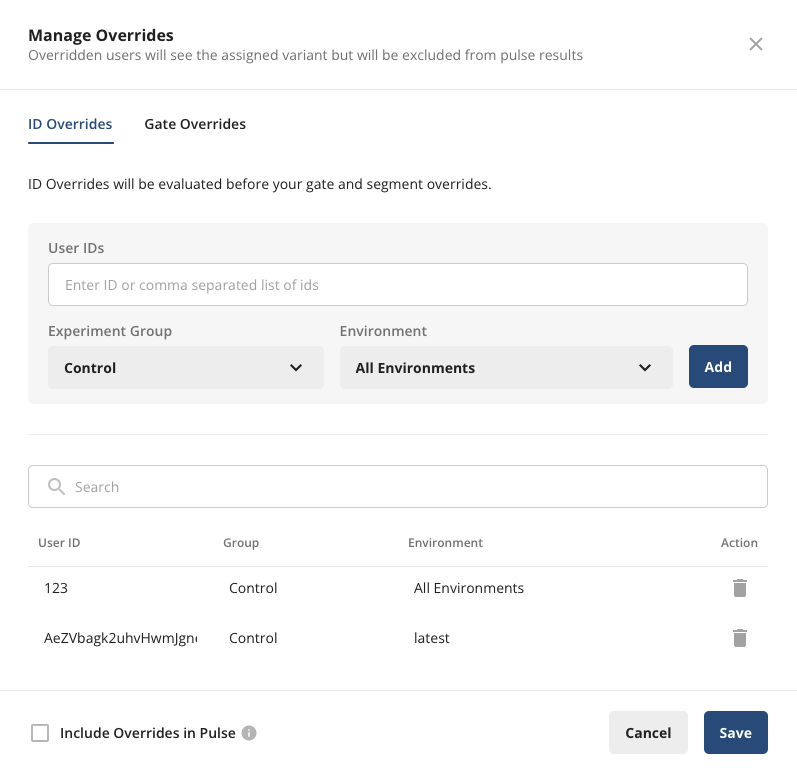
At some companies, an user may have a different ID in different environments and hence want to specify the environment to override a given ID in. To enable this, we’ve added the ability to specify target environment for Overrides in Experiments. For Gates, you can achieve this via creating an environment-specific rule.
⌛ Experiment Duration by # Target Exposures
(vs. Strictly Time Duration)
We’re introducing more flexibility into how you can measure & track experiment target duration. Now, you can choose between setting a target # of days or a target # of exposures an experiment needs to hit before a decision can be made.
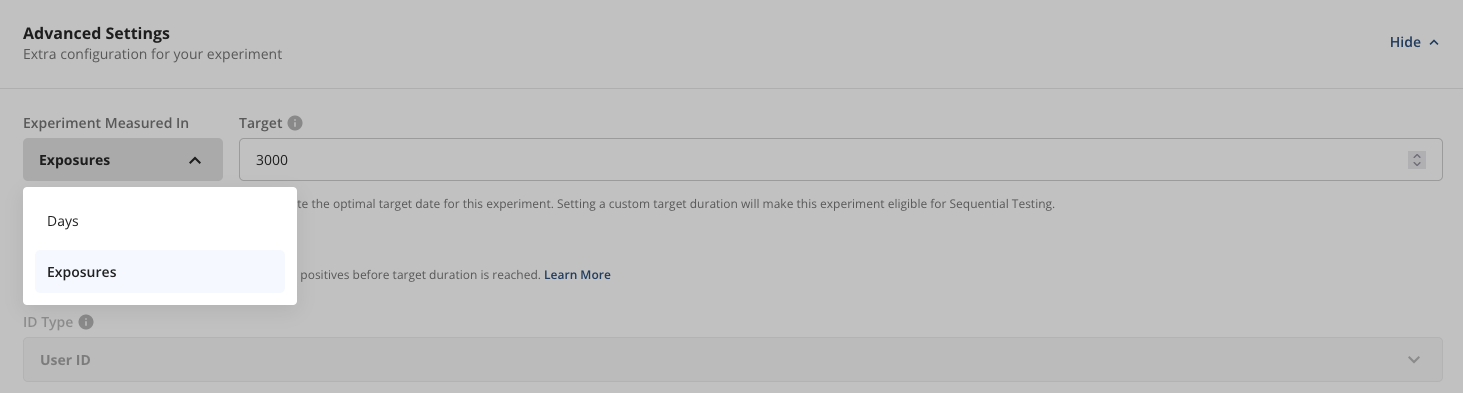
To configure a target # of exposures, tap “Advanced Settings” in Experiment Setup tab, then under “Experiment Measured In” select “Exposures” (vs. “Days”). The progress tracker at the top of your experiment will now show progress against hitting target number of exposures.
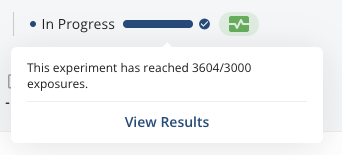
See our docs for more details.
Manual assignment for Stratified Sampling

Statsig manages randomization during experiment assignment. In some B2B (or low scale, high variance cases) the law of large numbers doesn’t work. Here it is helpful to manually assign users to test and control to ensure both groups are comparable. Statsig now lets you do this. Learn More
What is Stratified Sampling?
Stratified sampling is a sampling method that ensures specific groups of data (or users) are properly represented. You can think of this like slicing a birthday cake. If sliced recklessly, some people may get too much frosting and others will get too little. But when sliced carefully, each slice is a proper representation of the whole. In Data Science, we commonly trust random sampling. The Law of Large Numbers ensures that a sufficiently-sized sample will be representative of the entire population. However, in some cases, this may not be true, such as:
When the sample size is small
When the samples are heterogeneous
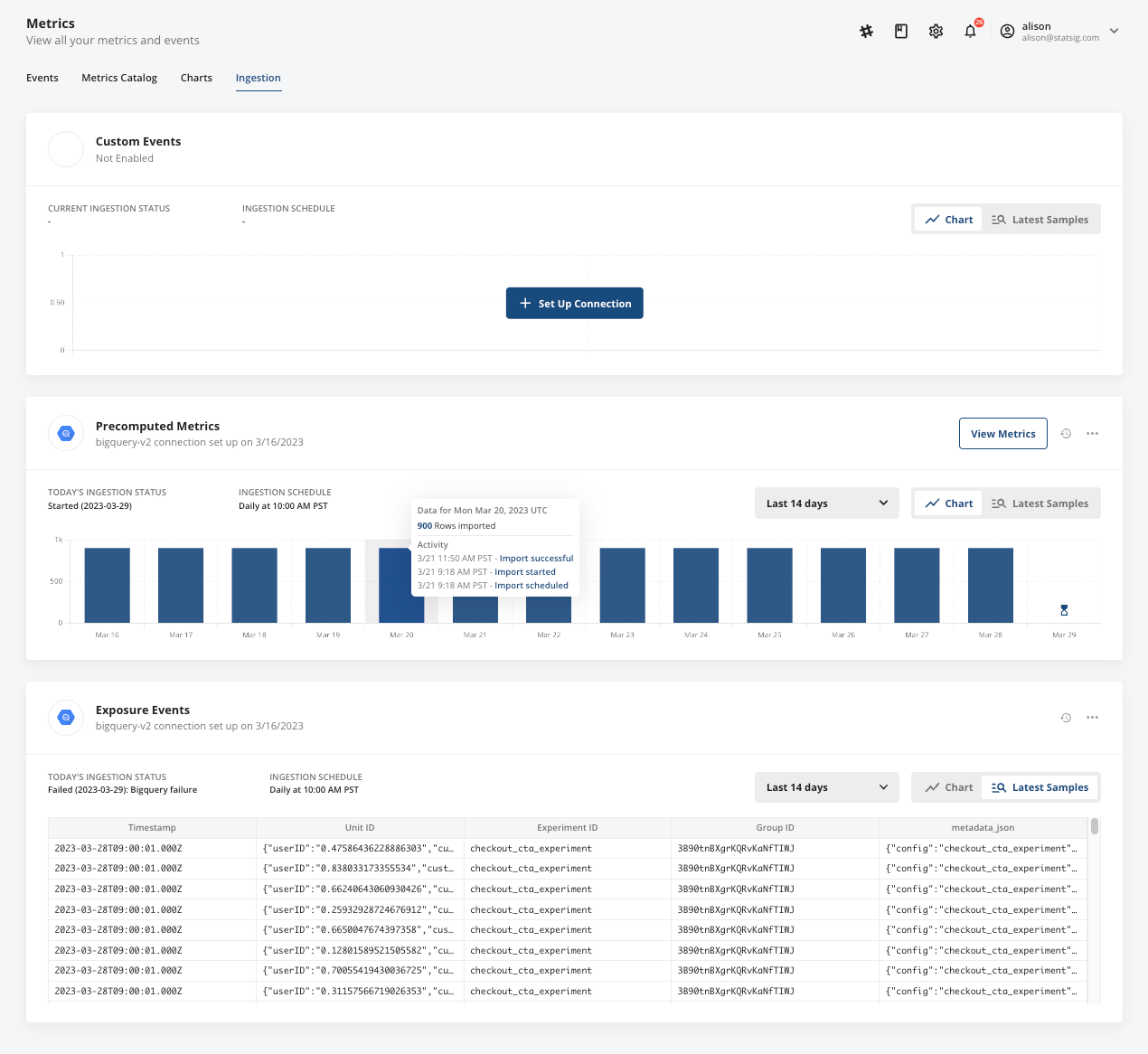
Warehouse ingestion tab makeover
We gave our Warehouse Ingestion tab a total makeover so that you can have better visibility into your import status! Some key improvements include:
A simple visual display to track your import progress, with an extended date range
Verify your imported data with ease and confidence using our import volume chart and data samples
Take actions more easily and stay in control of your imports (use the “…” menu), whether you want to trigger a backfill or edit your daily ingestion schedule
Incorporating more granular target population in Power Calculator calculations
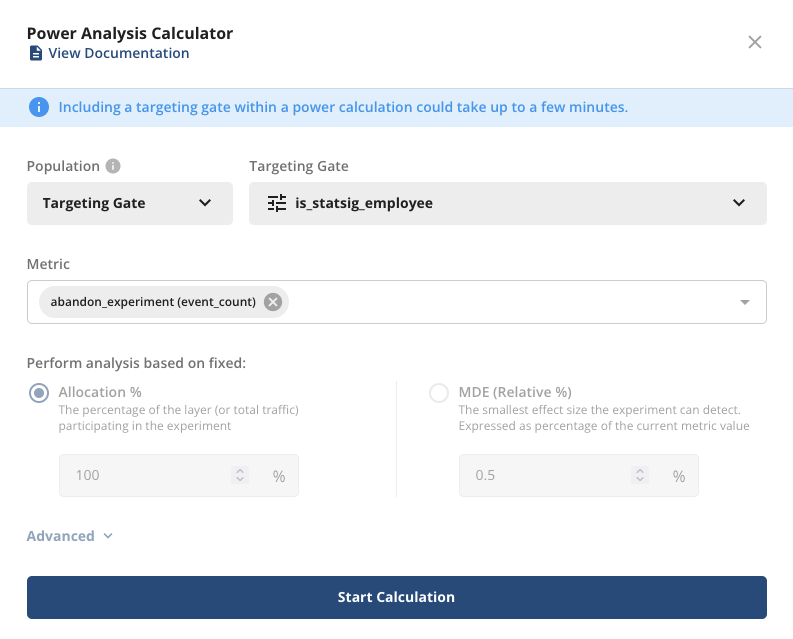
Now, you can specify which audience you want to calculate experimental power for, by selecting any existing Feature Gate via the Power Calculator.
To do this, go to the Power Calculator (either under “Advanced Settings” in Experiment creation or via the “Tools & Resources” menu) and select “Population”.
This will kick off an async power calculation based on the selected targeting gate’s historical metric value(s), and you will be notified via email and Slack once your power analysis is complete.
Explore metrics outside just an experiment
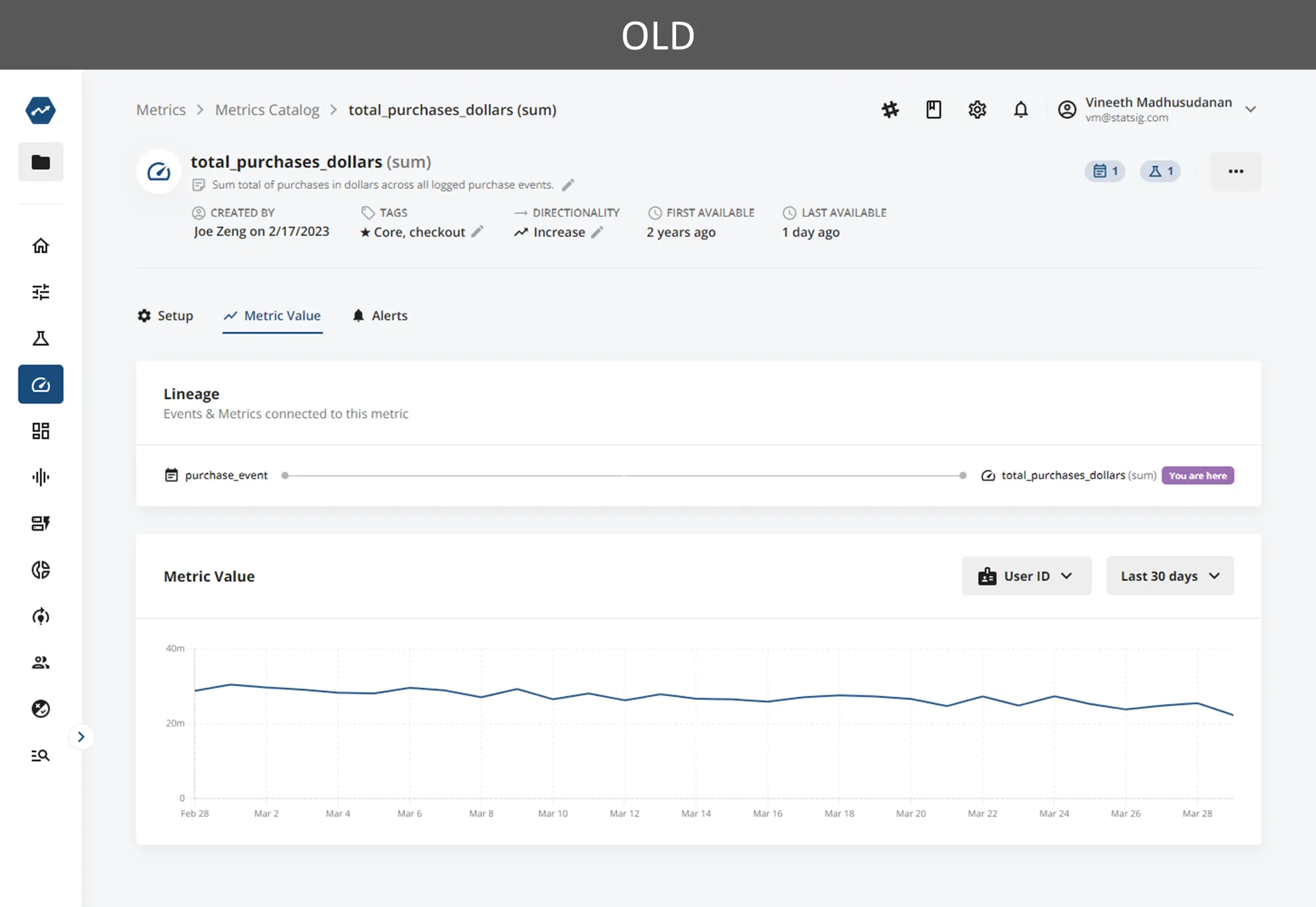
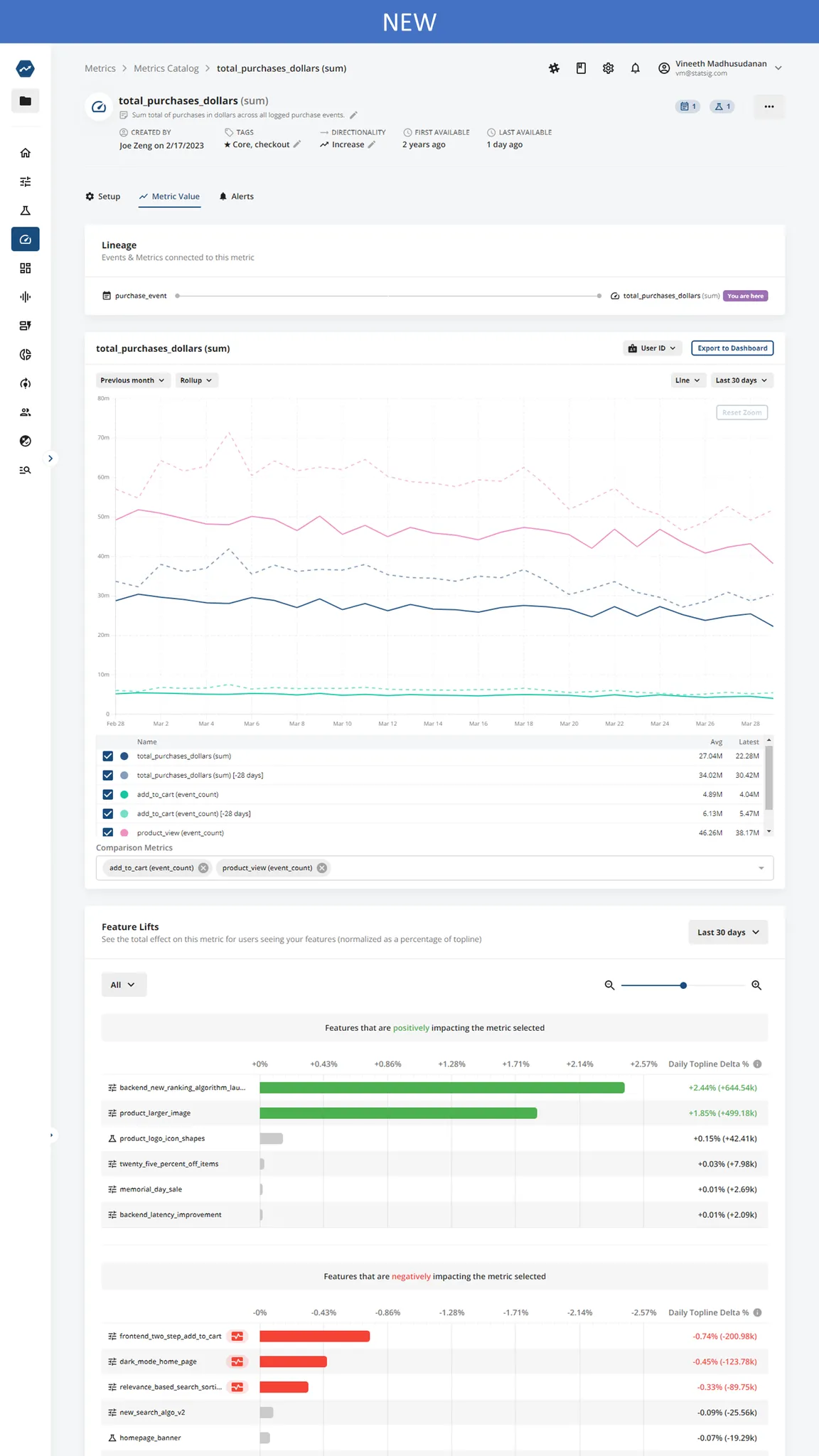
We’ve heard from some folks that they want to explore metrics even outside an experiment’s context. We’ve just started adding capabilities to do this. Now, when you’re looking at a metric in the Metrics Catalog you can:
compare values to a prior period to look for anomalies
apply smoothing to understand trends
look at other metrics at the same time to see correlation (or lack thereof) group by metric dimensions
save this exploration as a Dashboard to revisit/share with others
view current experiments and feature rollouts that impact this metric (also in Insights)
This starts rolling out March 31.
Left navigation bar auto-collapse
This gives you more free real estate to do your work in console! This will now be the default setting, but you can switch this back to manual collapse by using the “…” menu on the nav bar.
Permanent and stale gates
This can be found under Types filter in your Gates catalog. While these gates indicate helpful information about your flags, they will not change anything about the functionality of the flags.
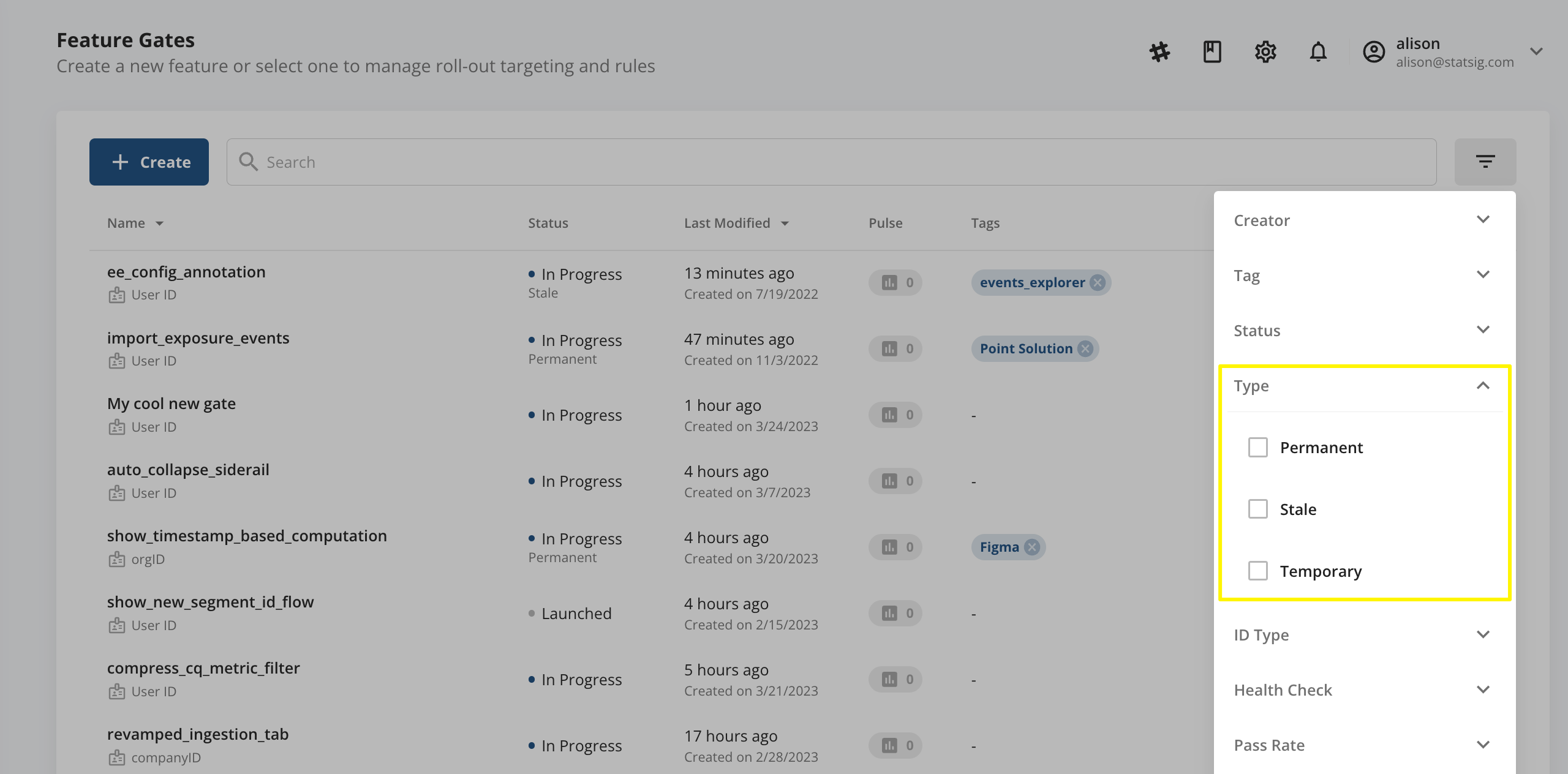
Permanent Gates (set by you) are gates that are expected to stay in your codebase for a long time (e.g. user permissions, killswitches). Statsig won’t nudge you to clean up these gates.
You can set gates to be Permanent in the creation flow or by using the “…” menu within each gate page.
Stale Gates (set by Statsig) are good candidates to be cleaned up (and will be used to list out gates for email/slack nudges)
On Monday morning, you’ll receive your first monthly nudge (email + slack) to take action on stale gates.
At a high level, these gates are defined as 0%/100% rolled out or have had 0 checks in the last 30 days (but exclude newly created or Permanent gates).
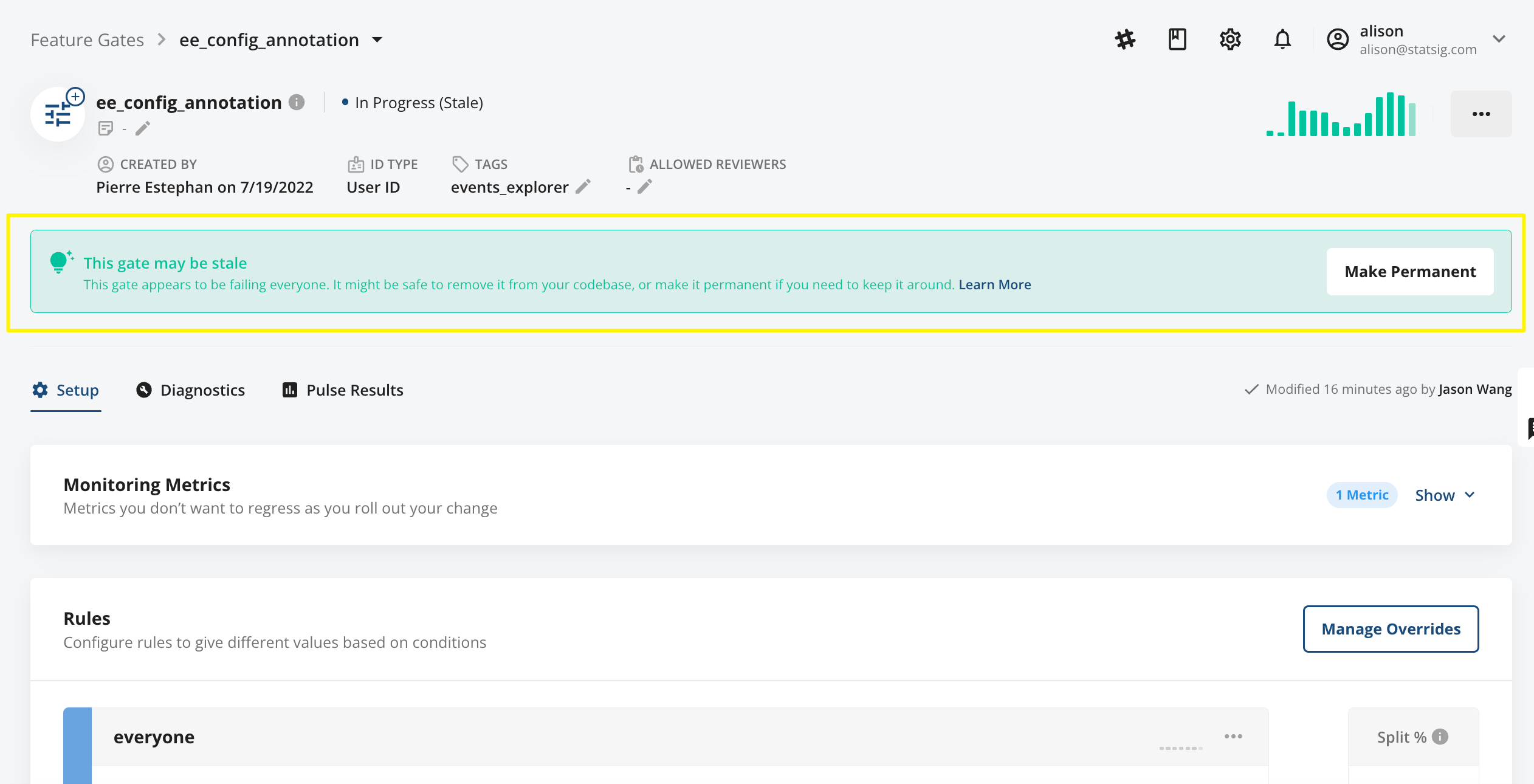
Please see the permanent and stale gates documentation for more information.
Loved by customers at every stage of growth